TextEdit is one of those applications on the Mac that you don’t hear a whole lot about. In the past I have been using TextWrangler and Smultron for my text editing. By text editing, I mean coding with HTML, CSS, PHP, and more. When I first opened TextEdit, I immediately knew how to make simple documents and change the text and format. After some messing around, I came across an easy configuration that would make it possible to code in TextEdit:
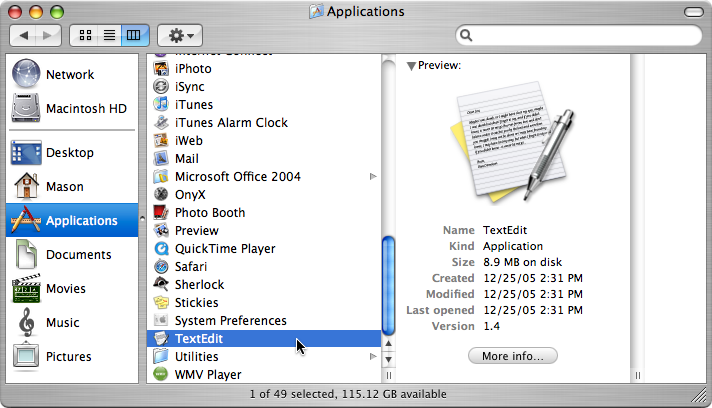
Open up TextEdit from the Applications folder in Finder.
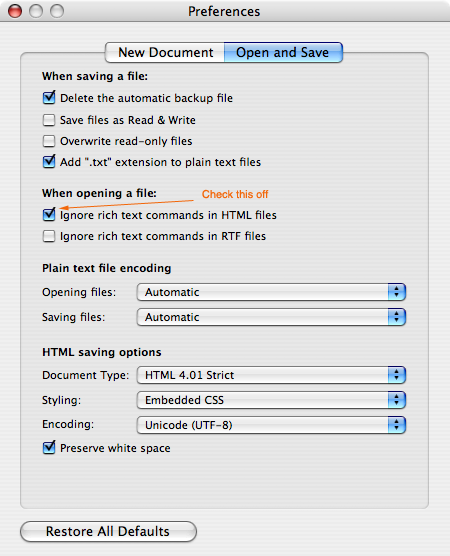
Go to Preferences under the TextEdit menu.
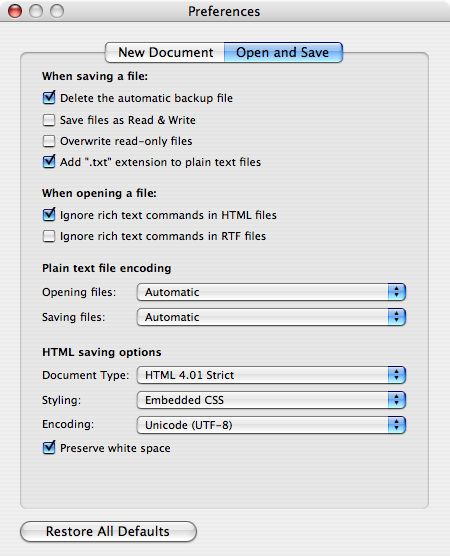
Once the Preferences window pops up, go to the Open and Save tab.
Under the “When opening a file:” section, put a check mark in the “Ignore rich text commands in HTML files” checkbox.
After you have done that, go back to your Textedit document and look under the Format menu for an option called “Make Plain Text”.
Now you can code anything from HTML to Javascript inside of TextEdit.
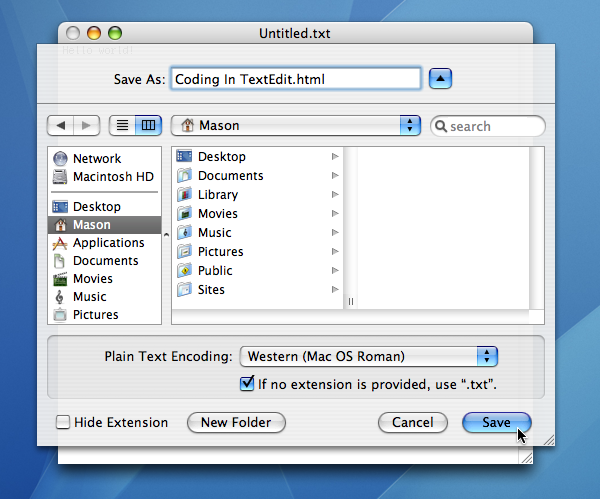
One tip before you start coding, make sure you add “.html” to the filename when you save it.
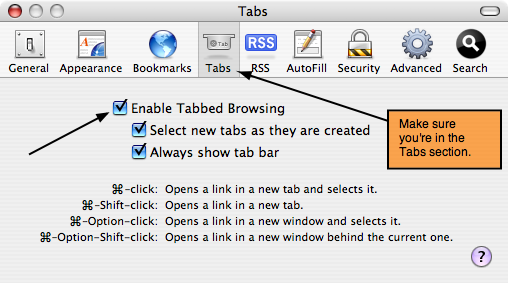
As I have mentioned before, Safari is the web browser that I use the most. I really wished it’s tab feature worked like other browsers do, where you can switch between the tabs. I prefer using tabs when I’m in Safari because it saves lots of screen space. When I use tabbed browsing, I want to see each tab, so I just click on the individual tab itself to view it. That can become a nuisance, especially when I’m visiting multiple websites. To do tab switching in Safari:
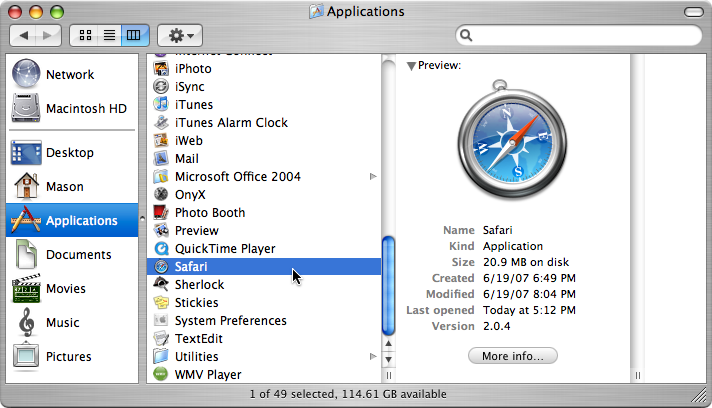
Open up Safari.
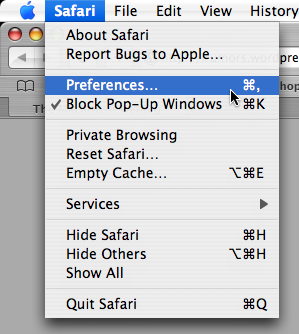
Go to Preferences under the Safari menu.
In the Preferences window, go to the Tabs section and make sure “Enable Tabbed Browsing” is checked off.
Use the Shift and ⌘ (Command) keys with the “[” “]” keys or use Control + Tab to switch between browser-tabs.
These past few weeks I’ve been noticing on forums that many Mac users are losing their passwords and can’t use their Mac. If you ever lose your password to your Mac, you don’t need to worry because the Mac OS X Install Discs have a hidden utility called Reset Password. Here’s how to use Reset Password.
Go ahead and insert Mac OS X Install Disc 1.
Restart your Mac holding down the “C” key.
A few moments later you will get a window asking which language you use.
Once you get past that, look up at the menubar for a menu called Utilities.
Inside the Utilities menu, look for Reset Password.
It should open up with a window showing an icon of your hard drive.
Type in your new password, save it, then quit the Installer Disc.
Restart and your Mac will load up with the same files as before, just a different password.
Being a Mac user for some time now, I have gotten used to how the system works and everything. One part of Mac OS X I don’t really understand is why the background of the login window has to be the default Aqua background. Apparently, it was pretty easy finding a way to customize the login window background. To change the login window background to your liking:
Open up Finder.
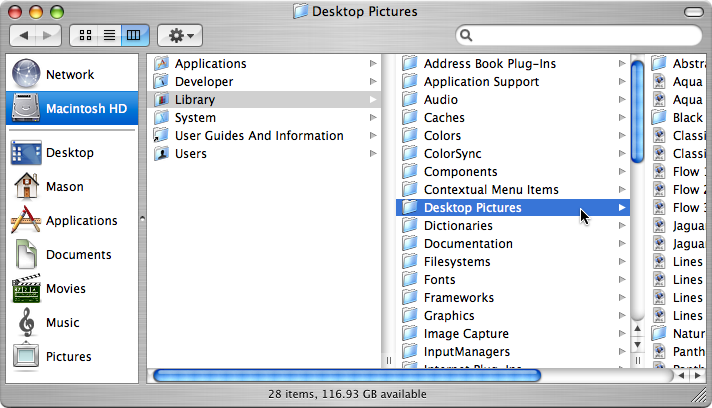
Go to the folder called Desktop Pictures inside of the Macintosh HD Library folder.
You should see a file called “Aqua Blue.jpg”.
This is the default background that shows up in the login window screen.
Change the name of this file to something like “aqua” to keep as backup if you need to restore later on.
Then, drag the picture you want to use as the background into the Desktop Pictures folder and rename it “Aqua Blue.jpg”.
You can also use an image you made, but make sure it matches the screen size.
Next time you login in you should notice a different background.
Every once in a while, Dashboard can become a little too “buggy”. It will use up a lot of memory at times causing a widget not to work as well as it should be. When I browse the web and a page is having loading problems, I usually just click the refresh button and it fixes things up. Well, there isn’t exactly a refresh button for Dashboard, but by holding down the ⌘ (Command) and “R” keys, the widget will refresh itself. This is also a useful feature for a developer who is making a widget and wants to make sure it is working correctly.