
A Nice feature that is conveniently built in with Mac OS X is the Archive feature. It allows you to compress files to reasonable sizes that are more manageable. If you deal with lots of archives and prefer to keep your Mac as organized as possible, you may be glad to hear that you can change the Archive preferences.
- Open Finder
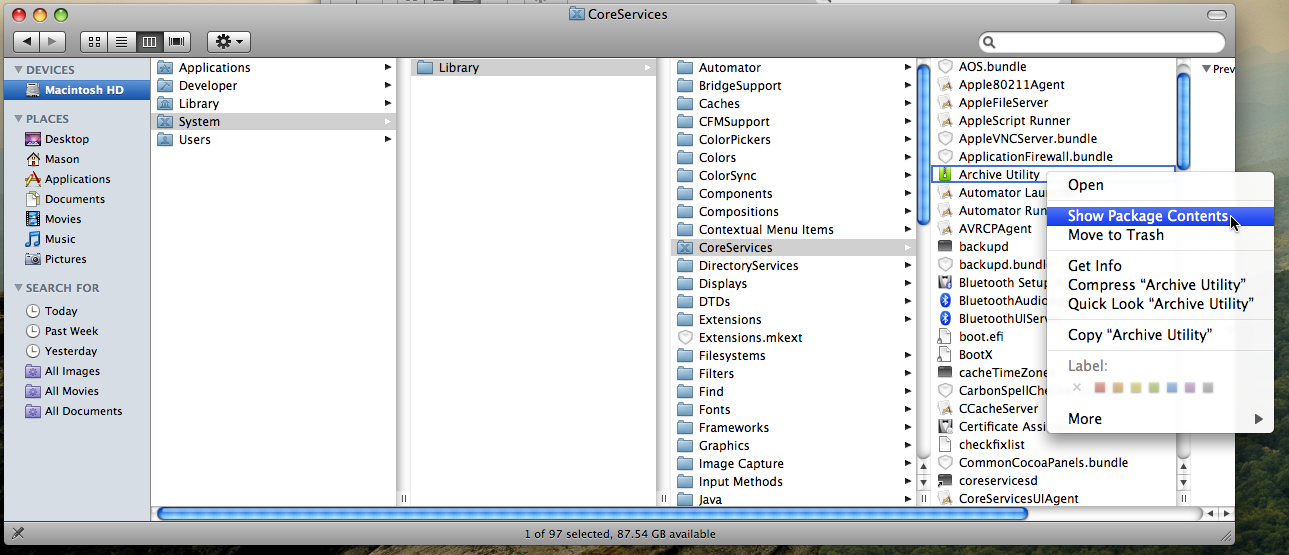
- Go to Macintosh HD > System > Library > CoreServices
- In CoreServices, right-click on Archive Utility and select Show Package Contents.
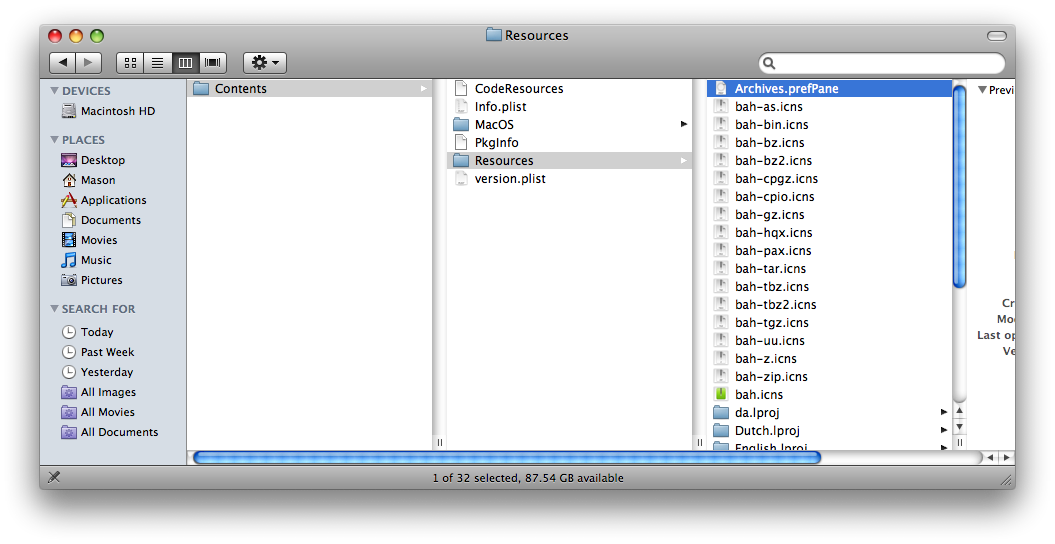
- In Contents > Resources, locate Archives.prefPane
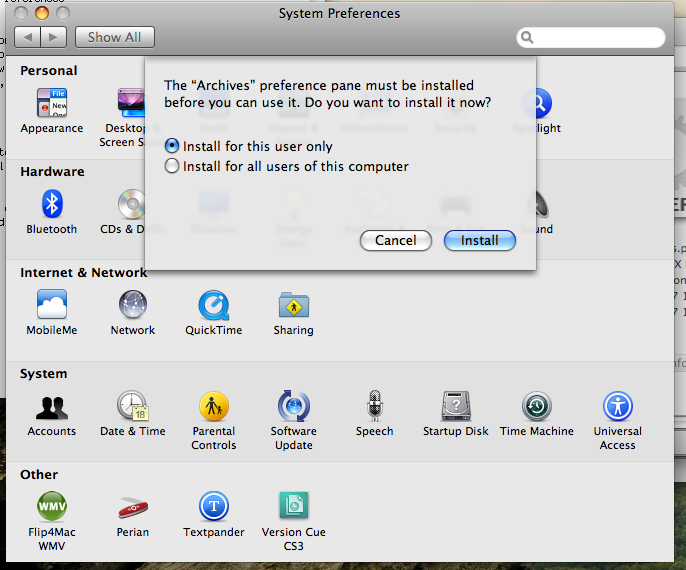
- Double-click on the file and you will be prompted to install it in System Preferences.
- In System Preferences, click on Archives.
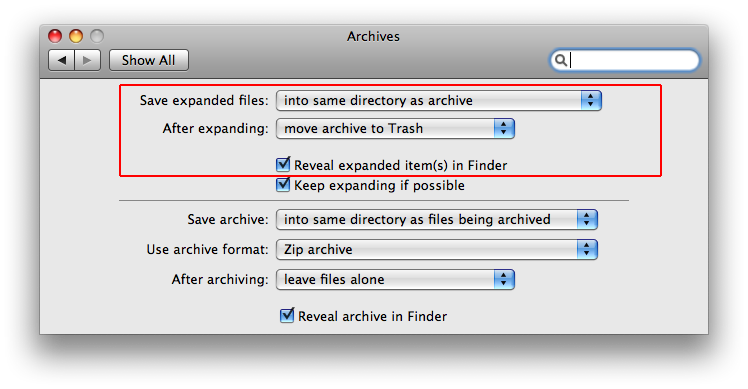
- The “Save expanded files” field affects the files in the archive you open up.
- The “After expanding” field allows you to choose a location to put the archive after it expands.
- The other options should be left with their default settings, unless you want to change them.
- If you don’t want to keep it System Preferences, just follow steps 1-3 (excluding Show Package Contents) and open up the Archive Utility. From there, go the Archive Utility menu > Preferences.
Vigo
May. 5, 2009Wow! Great tip! Thanks.
Linda Sattgast
Oct. 13, 2011This was extremely helpful. I was able to change my Preferences so the zip files will automatically be deleted when I extract the goods. Thanks!
Mason Sklut
Oct. 13, 2011Linda, I’m glad you found this tutorial helpful!
Cheers,
Mason