
Some of the coolest features on Mac OS X are the toughest ones to find, one in particular is Speech Recognition.
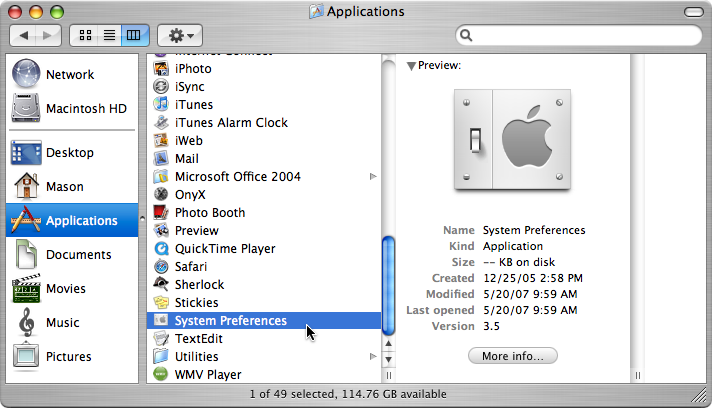
- Open up System Preferences.
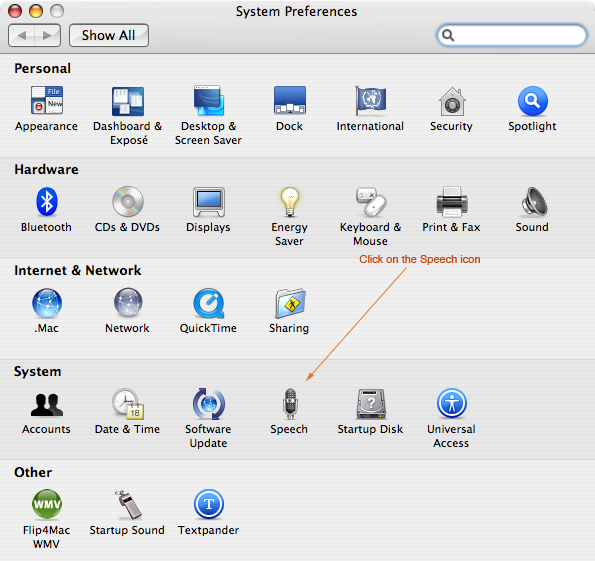
- Once it loads up, go to the Speech preference pane.
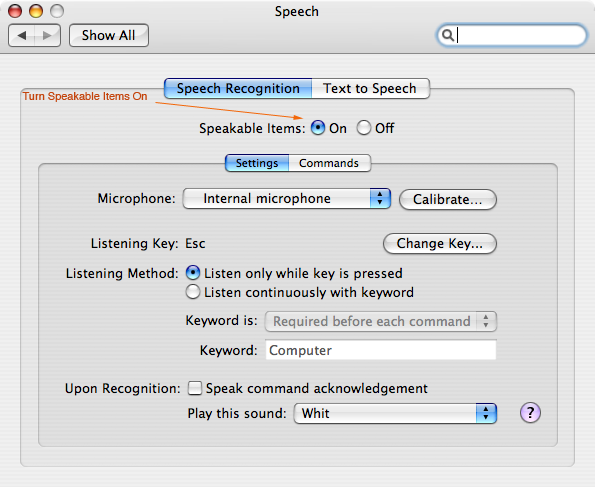
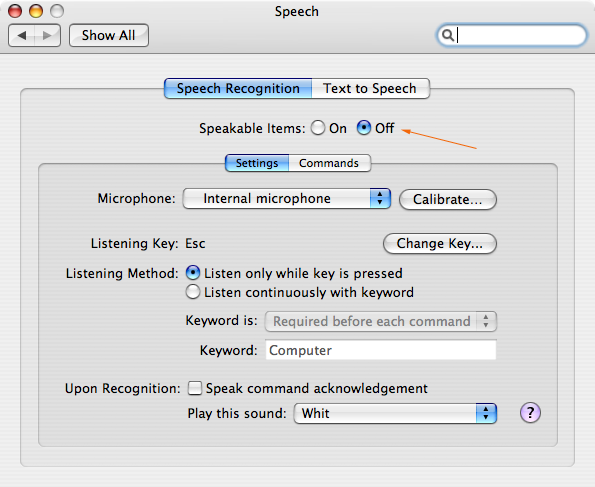
- In the Speech Recognition window, turn Speakable Items on.
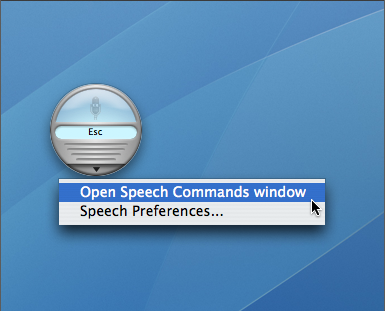
- Now you should see a small grey circle appear somewhere on your screen.
- Hold down the Listening Key or in my case the “esc” key andsay something like “what time is it”?
- To see all of the speech commands, click on a small upside down triangle on the grey circle.
- You can do a whole lot with Speech Recognition like play a game of chess, listen to a document, quit applications, send mail, and more.
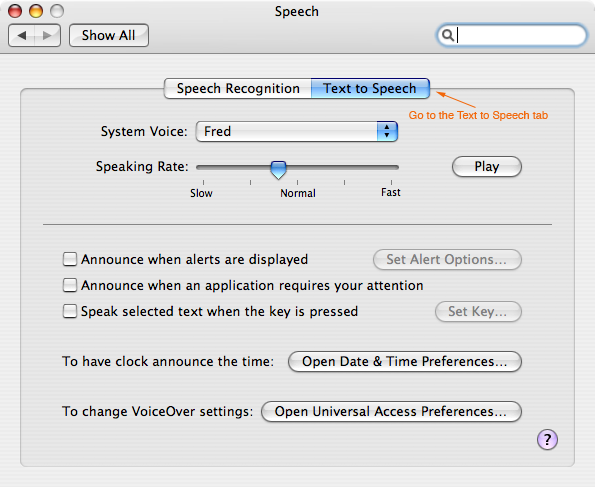
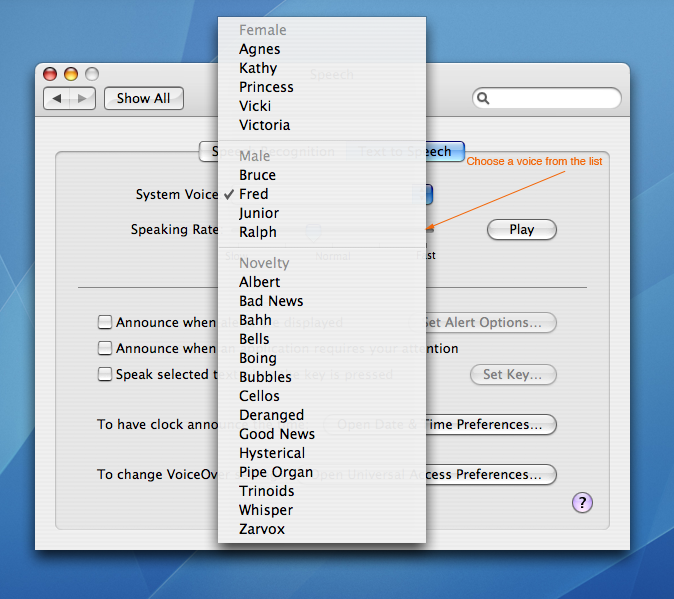
- If you don’t prefer the voice of the speaker go back to the Speech preference pane in System Preferences and select the Text To Speech tab.
- In the System Voice list, choose a different speaker.
- To quit Speech Recognition, open up the Speech preference pane in System Preferences and turn Speakable Items off.

Rubix
Apr. 3, 2009Great post, thanks for the info!
Mason Sklut
Apr. 4, 2009You’re very welcome.