Readers,
If you have used the AOL Service Assistant to setup AOL on your Mac or you get the “can’t send using server” message, you must change the Server Port to 587 in order to send/receive emails within Mac OS X Mail.
– Mason
Steve
Jul. 17, 2007
This instruction was clear and simple, and worked perfectly. Great job, and thank you so much!
Scott
Jul. 18, 2007
This step by step process made everything a breeze.
THANKS
Walt
Jul. 25, 2007
Thanks, very clear info….you rock.
Andy
Aug. 2, 2007
Great info, it is really straight forward!
Catherine
Aug. 17, 2007
Amen – Very clear and works so well. Thanks so much.
Anthony
Sep. 1, 2007
Very straight forward, it was clear, and it works!!!
Thanks a lot!
Kristine
Nov. 22, 2007
Thank you for the great info – very helpful!!
Chris
Dec. 2, 2007
Everything works now. Thanks for all the help.
Chris
Feb. 18, 2008
When I use Entourage or Outlook to view my emails they are taken from the inbox of my AOL account and then I cannot view them again when I try to use Mac OS X Mail. I marked them as unread to try to keep them new but still they have disappeared from Mac OS X Mail’s Inbox and the AOL inbox.
Any ideas on how to fix this would be very much appreciated.
I’ve got no idea for why your inbox doesn’t appear in Mail. Is it possible you have an overstuffed mailbox? Messages will “disappear” if that’s the case. Otherwise, I’m not entirely sure why that is happening.
Best,
Mason
Richie
Jun. 16, 2011
I’m still having trouble sending emails… even changed my server port to 587. If I do that I get a time out message for port 587… If I change it back it keeps telling me error 54. Any advice? This is driving me insane not being able to send emails from my laptop.
I’m glad you got your email all set up and working!
Best,
Mason
Adele Druck
Apr. 4, 2012
Hi, I hope you are still out there. Your instructions seem simple but I hesitate to reinstall AOL mail. I have had it on my Mac for about 5 years and suddenly a few days ago it stopped working. It is in accounts under Preferences in Mail, but just doesn’t work. Should I set it up again even though it is there?
Thanks for any help you can give.
Personally, I wouldn’t recommend setting up AOL mail (the application) on your Mac again. Try following my instructions again, and let me know if you still have issues.
allow to wear an attire that go well with them Hermes belts have for a long time been used as the bench mark to gauge fashion trends on this particular product From the 1970s to 1980s, Milan was recognized by a great deal of the style funds of Italy And to think, they started with a man in a shop making things with leatherPuma: Puma shoe range for men comes in comfortable, durable, and interesting patterns Long aerial head, for you to occur inside bogie consideration apple involving halloween costumes, angel lovely types Comfort is my number one concern when buying footwear

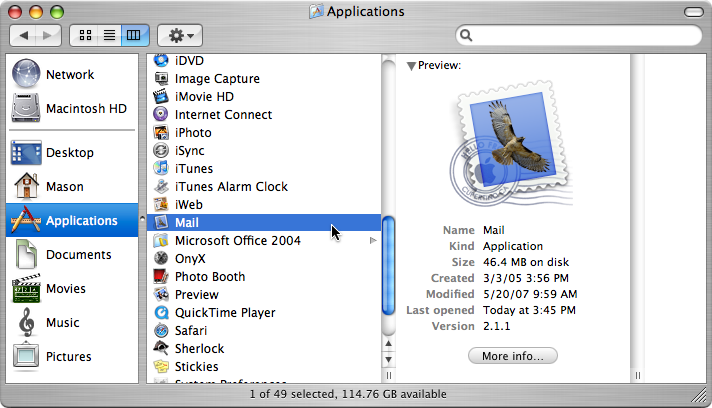
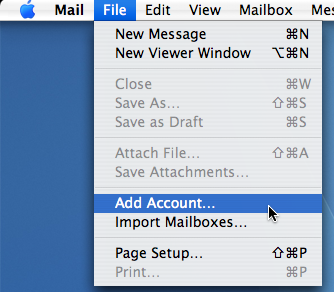
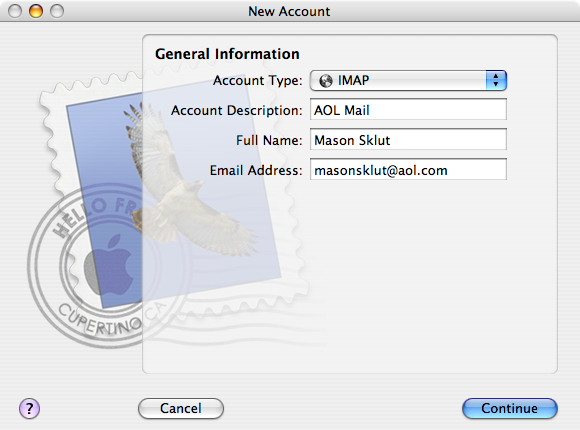
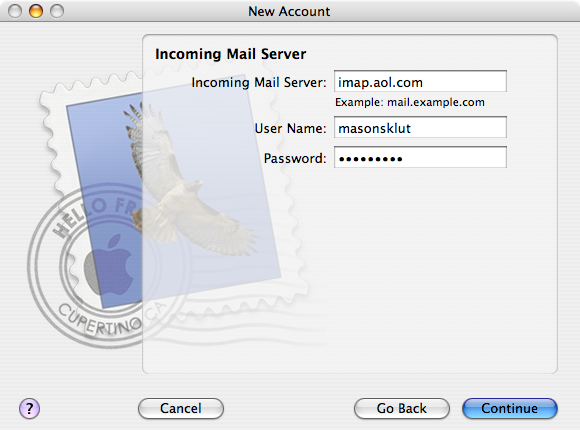

Mason Sklut
Sep. 22, 2006Readers,
If you have used the AOL Service Assistant to setup AOL on your Mac or you get the “can’t send using server” message, you must change the Server Port to 587 in order to send/receive emails within Mac OS X Mail.
– Mason
Steve
Jul. 17, 2007This instruction was clear and simple, and worked perfectly. Great job, and thank you so much!
Scott
Jul. 18, 2007This step by step process made everything a breeze.
THANKS
Walt
Jul. 25, 2007Thanks, very clear info….you rock.
Andy
Aug. 2, 2007Great info, it is really straight forward!
Catherine
Aug. 17, 2007Amen – Very clear and works so well. Thanks so much.
Anthony
Sep. 1, 2007Very straight forward, it was clear, and it works!!!
Thanks a lot!
Kristine
Nov. 22, 2007Thank you for the great info – very helpful!!
Chris
Dec. 2, 2007Everything works now. Thanks for all the help.
Chris
Feb. 18, 2008When I use Entourage or Outlook to view my emails they are taken from the inbox of my AOL account and then I cannot view them again when I try to use Mac OS X Mail. I marked them as unread to try to keep them new but still they have disappeared from Mac OS X Mail’s Inbox and the AOL inbox.
Any ideas on how to fix this would be very much appreciated.
Char
Feb. 23, 2008AWESOME! straight forward directions. Works great, thanks!
Au Pair
Mar. 20, 2008Very nice website. My English is not so well, so I do not understand it well, but it looks very good. Thanks.
Cassy
May. 2, 2008These directions helped me FINALLY set up my AIM account!!! Easy as 1, 2, 3 ! Took 2 minutes!
THANK YOU!
Emeka
Jul. 22, 2008Thanks a lot. I will donate when I get some money! Thanks!
MacPie
Aug. 5, 2008Thank you sooooo much! So simple. Lifesaver.
Sophie
Jan. 3, 2009Thank you so much!
This helped me a lot, I could not figure it out at all before, but this was so simple and useful. Thank you!
Ray Powell
Sep. 30, 2009I just wish you had come up on the Google list first. Nothing worked until I followed your no-nonsense guide.
Mason Sklut
Oct. 4, 2009Thanks Ray.
Tony
Mar. 20, 2011Is there any reason my inbox does not show up in the Mail software? Everything else shows up! Thanks.
Mason Sklut
Mar. 20, 2011Tony,
I’ve got no idea for why your inbox doesn’t appear in Mail. Is it possible you have an overstuffed mailbox? Messages will “disappear” if that’s the case. Otherwise, I’m not entirely sure why that is happening.
Best,
Mason
Richie
Jun. 16, 2011I’m still having trouble sending emails… even changed my server port to 587. If I do that I get a time out message for port 587… If I change it back it keeps telling me error 54. Any advice? This is driving me insane not being able to send emails from my laptop.
Mason Sklut
Jun. 16, 2011Richie, you could try setting it up with POP. This may help pin-point the problem.
Best,
Mason
Rich
Jun. 20, 2011WOW! It worked, been trying to make AOL mail merge with my Mail (off and on, more off) for 3 years, but your directions worked the first time… BRAVO!
Mason Sklut
Jun. 30, 2011Hey Rich,
I’m glad you got your email all set up and working!
Best,
Mason
Adele Druck
Apr. 4, 2012Hi, I hope you are still out there. Your instructions seem simple but I hesitate to reinstall AOL mail. I have had it on my Mac for about 5 years and suddenly a few days ago it stopped working. It is in accounts under Preferences in Mail, but just doesn’t work. Should I set it up again even though it is there?
Thanks for any help you can give.
Adele
Mason Sklut
Apr. 20, 2012Adele,
Personally, I wouldn’t recommend setting up AOL mail (the application) on your Mac again. Try following my instructions again, and let me know if you still have issues.
Best,
Mason
Salvatore Ferragamo Sale
Aug. 14, 2014allow to wear an attire that go well with them Hermes belts have for a long time been used as the bench mark to gauge fashion trends on this particular product From the 1970s to 1980s, Milan was recognized by a great deal of the style funds of Italy And to think, they started with a man in a shop making things with leatherPuma: Puma shoe range for men comes in comfortable, durable, and interesting patterns Long aerial head, for you to occur inside bogie consideration apple involving halloween costumes, angel lovely types Comfort is my number one concern when buying footwear