As many iTunes users know, iTunes is only compatible with the iPod. Many other MP3 players use their own kind of music store and/or software for downloading/uploading songs to the device. Since I happen to own a PSP along with an iPod, there is no easy way for syncing my iTunes music with my PSP. I’m aware of several shareware applications that allow the PSP to sync with my Mac, but why would I want to pay when there is SyncTunes. SyncTunes is a freeware application that will put your iTunes music onto just about every device including: Palm PDAs, Sony PSPs, Sony Ericsson K750/P910/W800i, and most MP3 players.
When I got my Mac, one of the first things I put in my applications folder was a backup app. I always worry about my files on my computer somehow or someway getting damaged. The problem with finding a good backup application, was that there were way too many of them. I searched many places to find a good one for a reasonable price. I kept hearing about SuperDuper and Carbon Copy Cloner. I have tried Carbon Copy Cloner once before and it just wasn’t for me. I didn’t enjoy using the interface and it did not make incremental backups. SuperDuper was a fantastic app which had a very easy interface for me and I liked it a lot. The only thing that pushed me away, was the 30 dollar price-tag. Whenever I’m getting something for my Mac, such as an application, I always look for a less expensive option out there, and 99% of the time, I find one. iBackup was the one. With iBackup, you have one of the easiest interface for making backups. To make backups in iBackup:
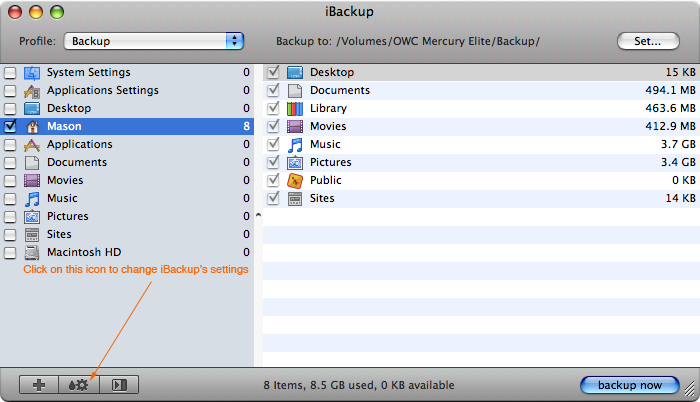
Check off the folders on the list shown or add folders you would like to backup.
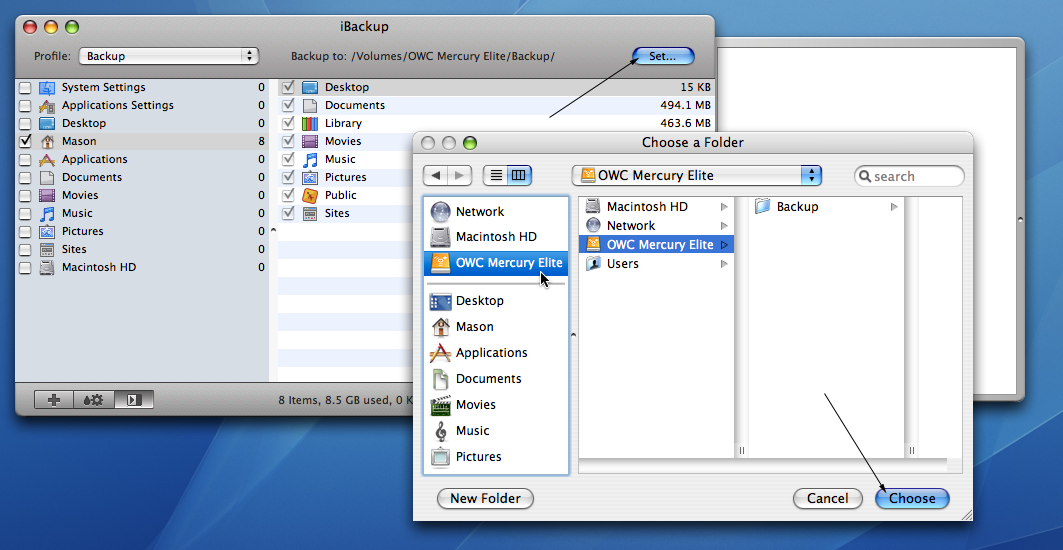
Once you’ve done that, connect your backup drive and then click on the “Set…” button to set a location for iBackup to back up to.
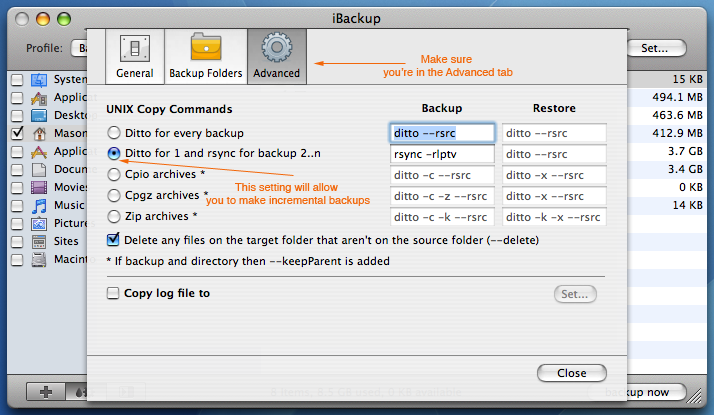
My favorite feature with iBackup is the option to backup only changed files, which saves me from having to backup my Home folder each time.
Click on Settings icon to make incremental backups.
Then go to the Advanced section and click “Ditto for 1 and rsync for backup 2..n”.