
With the new release of Mac OS X Leopard, over 300 new features have been installed on your Mac. The most talked-about one would be Time Machine by far. Apple include Time Machine, because it will encourage people to backup their files on a more frequent basis. The only feature with Time Machine that bugs me, is that you can set a time to backup, it’s only by the hour. With a little bit of code, Automator, and iCal, I got Time Machine to work when I want it to.
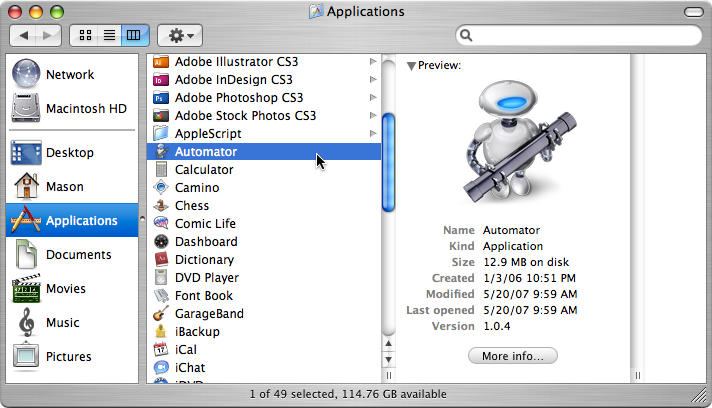
- To start off, open up Automator
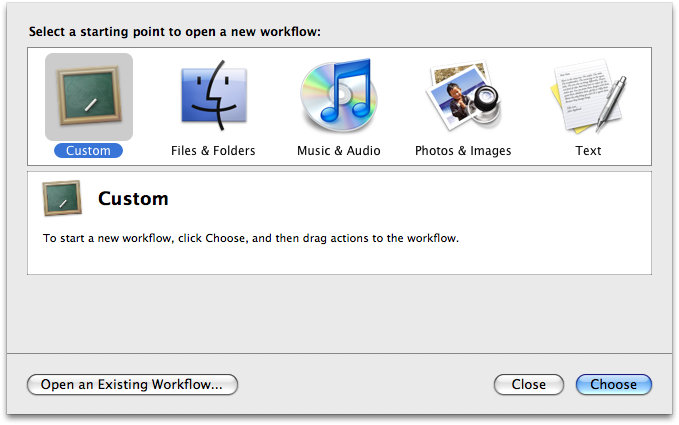
- Select “Custom” in the drop-down menu that appears upon opening Automator
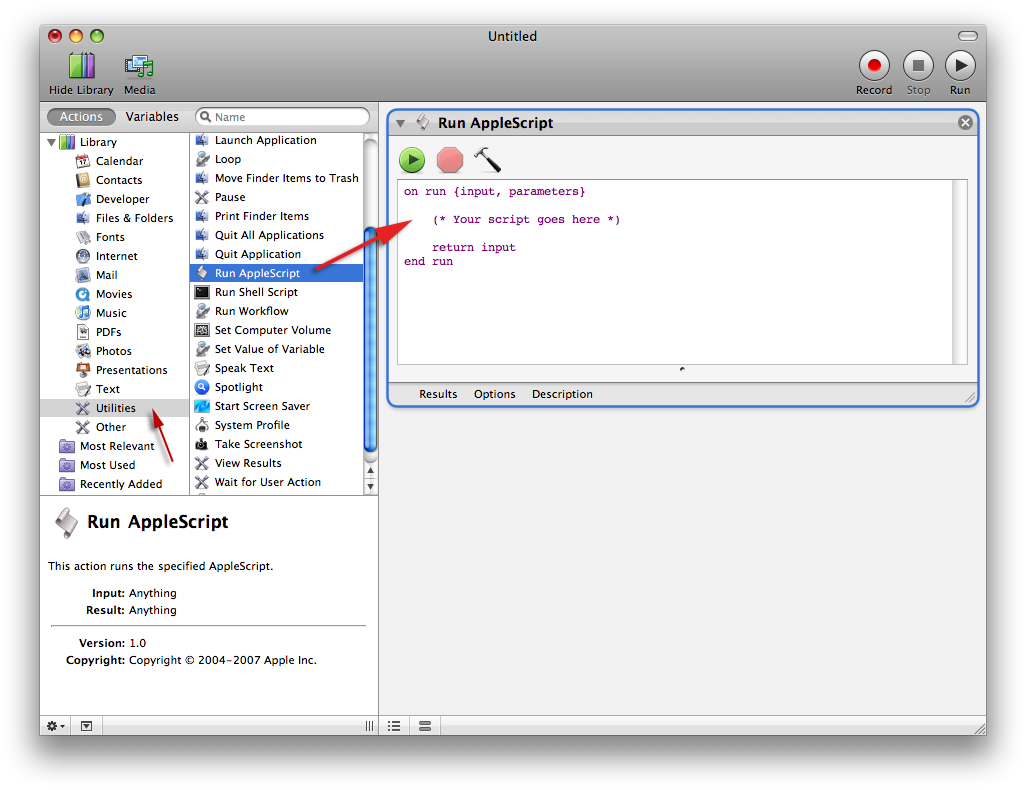
- Find “Utilities” in the sidebar and then drag “Run AppleScript” to the blank space on the right side
- Where it says “(* Your script goes here *)”, copy and paste the following code:
do shell script  /System/Library/CoreServices/backupd.bundle/Contents/Resources/backupd-helper

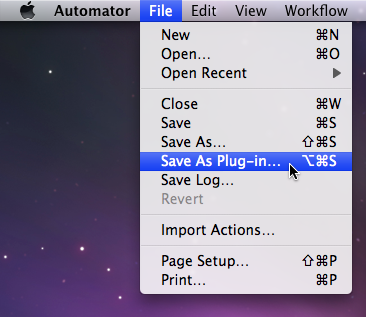
>/dev/null 2>&1 & - Go to the File menu in the menubar, and choose “Save as Plug-in”
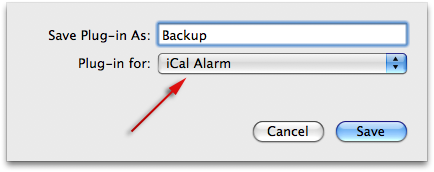
- Type in a name for the plug-in
- Choose “iCal Alarm” under the drop-down menu below the title field.
- After clicking the “Save” button, iCal will open up
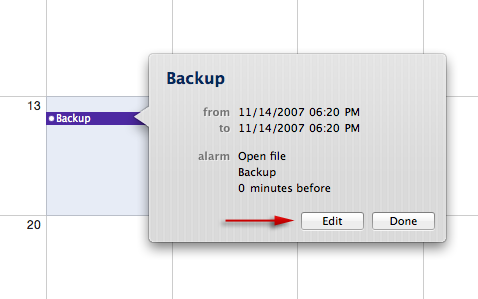
- Switch to iCal, and double click on the application title you just made. It should appear on the day you made it
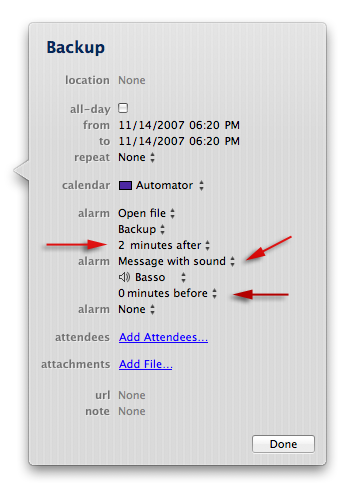
- Click on the edit button to change the settings
- In order for this script to work properly, you must have your hard-drive connected to your Mac at the time the plug-in runs
- A trick to remind me to turn my hard-drive on is to add another alarm with the event that makes a pop-up message with sound
- I have my alarm set up so the pop-up message reminds me to turn my hard-drive on, then 2 minutes later the script will run and backup all my data

Christophe Bismuth
Aug. 9, 2008Thank you so much, your tip is really great and runs on my iMac each night ;o)
Dewald
Aug. 17, 2008After using the above successfully (thanks) I heard about TimeMachineEditor, Also works quite well: