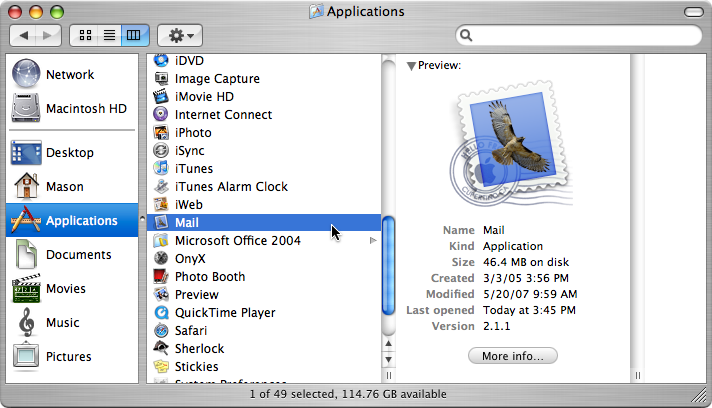
Open Mail from either your dock or your Applications folder.
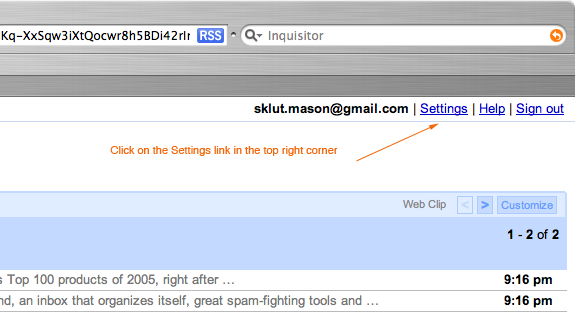
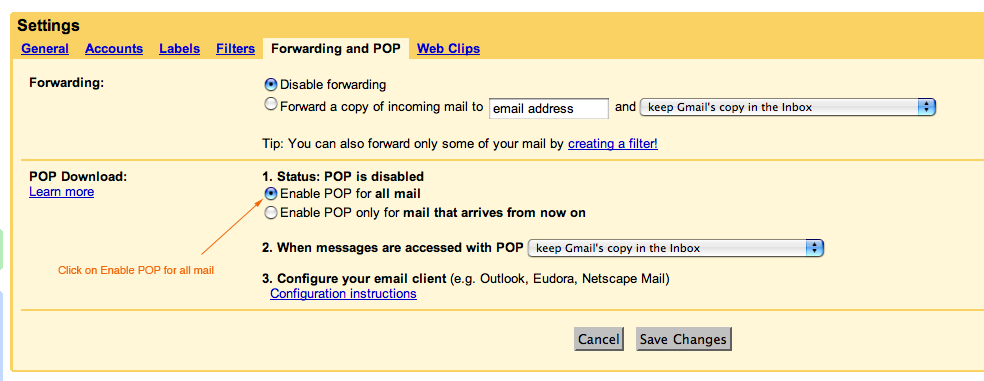
Make sure POP access is turned on for your Gmail account. To ensure it is on, login to your Gmail account online.
Go to Settings (top right corner of page).
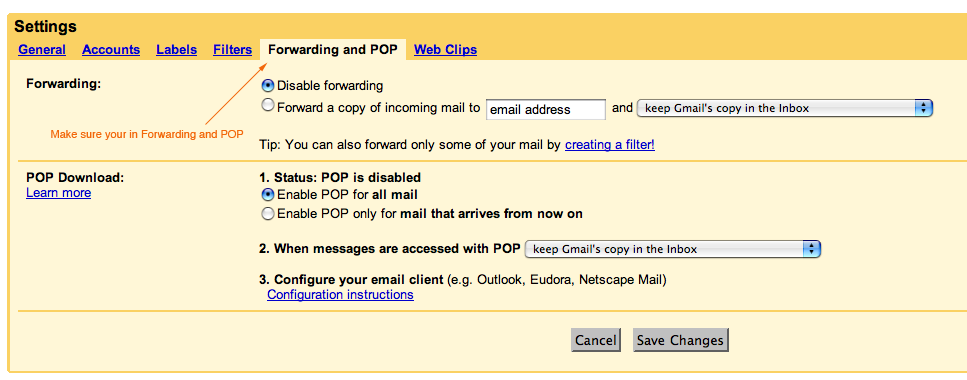
Go to the Forwarding and POP section.
Click on Enable POP for all mail.
Click on Save Changes.
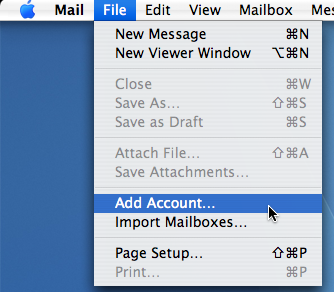
Now, Go back to Mac OS X Mail and go to File > Add Account.
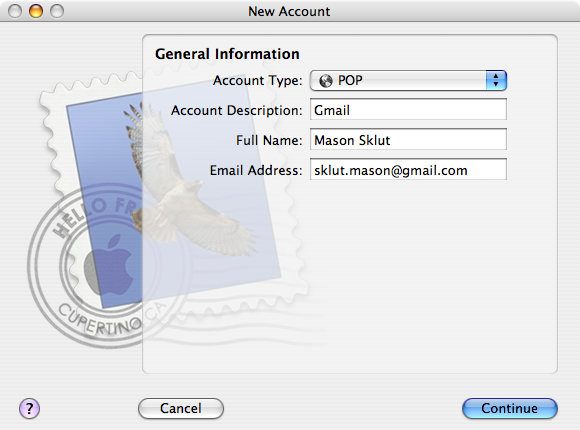
The General Information window should appear.
Make sure POP is selected under Account Type.
Type “Gmail” under Account Description.
Enter your name under Full Name.
Type your username@gmail.com under Email Address.
Click Continue.
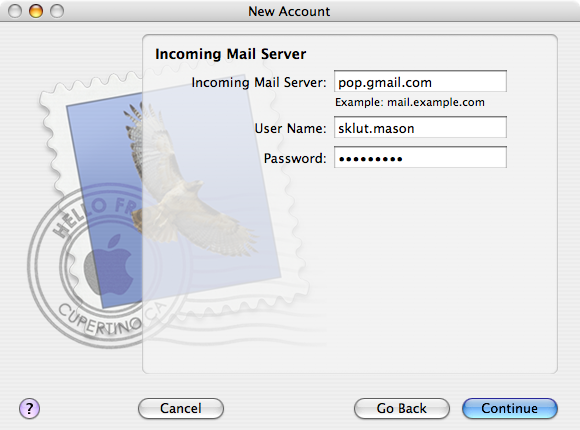
Enter “pop.gmail.com” under Incoming Mail Server.
Type your username@gmail.com under User Name.
Put your Gmail password in the Password field.
Click Continue.
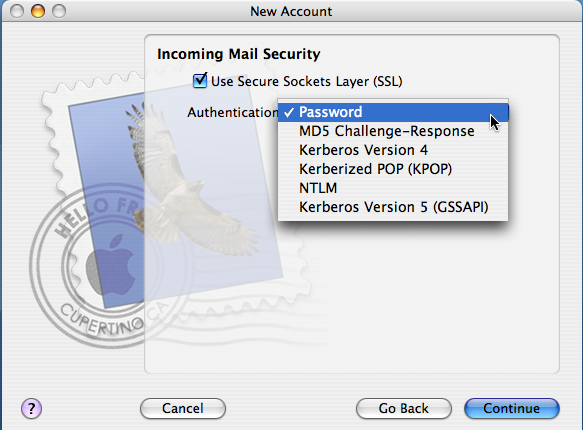
Make sure Use Secure Sockets Layer (SSL) is checked.
Select Password under Authentication.
Click Continue.
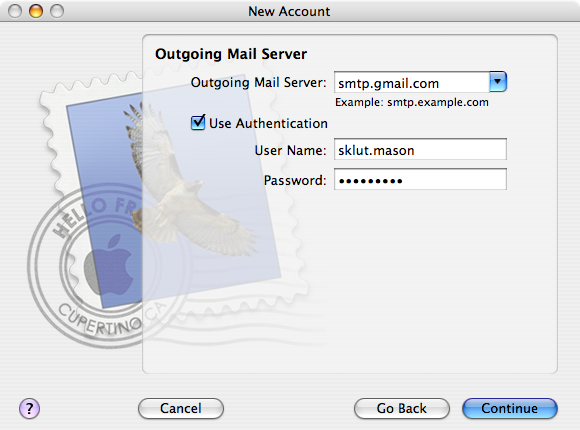
Type “smtp.gmail.com” under Outgoing Mail Server.
Make sure Use Authentication is checked.
Enter your username@gmail.com under User Name.
Put your Gmail password in the Password field.
Click Continue.
Now click Done.
You have now successfully setup your Gmail account with Mac OS X Mail!
screenshots : 1 2_1 2_2 2_3 3 4-9 10-13 14-16 17-21
Louise
Dec. 22, 2006Thanks for this article! Very helpful!!
J.G. Owen
Feb. 21, 2007Thanks for the instructions! Worked great!
Lizz
Mar. 27, 2007Thanks so much!
Maria
Apr. 3, 2007Thank you so much! :) .
Mark
Apr. 11, 2007THANK YOU!
Jeni
Apr. 23, 2007Thanks, that helped a lot.
Blaine
Apr. 25, 2007Thank you so much :) .
Evy
May. 8, 2007EXCELLENT! It was such a simple missing step. Thanks for the hot tips.
Dr. Choice
Jun. 5, 2007This was immensely helpful.
Tyler Branson
Jun. 22, 2007Thanks so much! This was so helpful and easy to follow.
Efka
Jul. 11, 2007Thanks.
Lacie
Aug. 17, 2007THANKS SOOOOO MUCH! I appreciate it a lot.
Manya
Aug. 23, 2007Very helpful, thanks.
Venky
Sep. 12, 2007Just awesome… Thank you very much.
Avani
Dec. 15, 2007Thanks a lot! :)
Ethan
Jan. 2, 2008Thanks so much! This is exactly what I needed!
Max
Jan. 4, 2008Very helpful. Thanks a lot!
Mike
Mar. 28, 2008Thanks, you just saved me a few hours!
Kristie
May. 16, 2008Awesome! Exactly what I needed.
Taylor
May. 21, 2008Thanks for everything.
Nick
Aug. 7, 2008Just so the publisher of this article knows, I am extremely experienced in enabling Gmail onto a Mac email account because I have gone through this painstaking process numerous times, and of all the articles and instructions I have found online, this is by far superior to any of the other articles.
Job well done.
Mike
Aug. 14, 2008Absolutely the best, most clear instructions I’ve ever seen.
Doug
Sep. 12, 2008Only site that could get me through it. Thanks a lot.