Have you ever not found a song you wanted on iTunes? Annoying, right? For me, I typically find my music on SadSteve or YouTube (yes — YouTube). A while ago, MacHeist hosted a mission which included some handy applications, such as WireTap Pro. At first, I had no reason to use this application, then I discovered its amazing capabilities for recording line-in audio (e.g. YouTube music videos). Unfortunately, Ambrosia Software feels that it’s necessary to make WireTap Pro ridiculously expensive ($69). I believe it’s important to make money as a software developer, but that’s just insane. Due to the fact many of you reading this tutorial either did not win the mission on MacHeist (two years ago) or you don’t want to spend $69 on WireTap Pro, I’m going to show you how to record (streaming) audio for free, with Audacity.
- Download Audacity, Soundflower (special audio plugin, free), and LAME MP3 Encoder (exports MP3).
- Open up Soundflower in /Applications/Soundflower/Soundflowerbed.
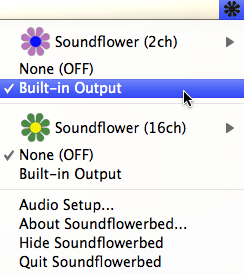
- Click the Soundflower icon in the menubar.
- Make sure under Soundflower (2ch) “Built-in Output” is selected.
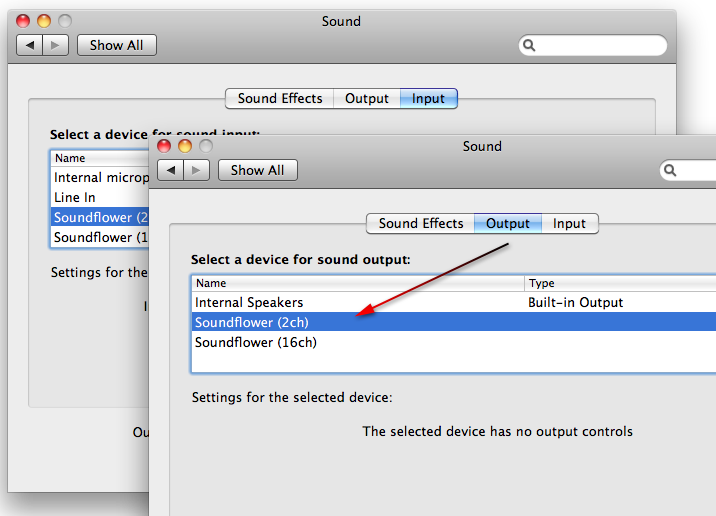
- Open up the Sound preference pane in System Preferences.
- In both the Output and Input sections, select Soundflower (2ch).
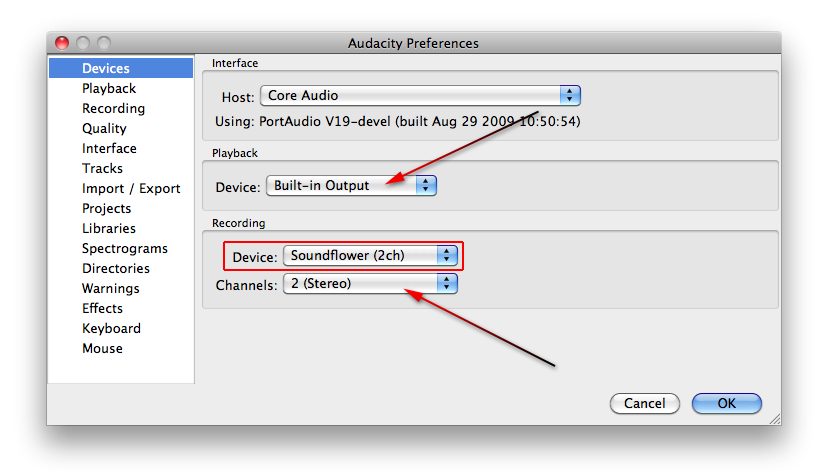
- Open up Audacity, and go to Preferences.
- In the Devices section, set Soundflower (2ch) as the Recording Device and 2 (Stereo) as the Recording Channels.
- Leave “Built-in Output” as the Playback device.
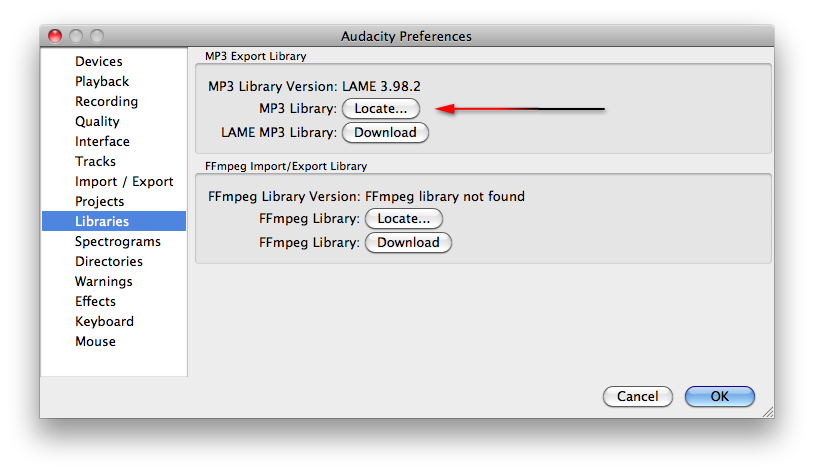
- In Audacity Preferences, go to the Libraries section.
- Click the Locate button next to MP3 Library.
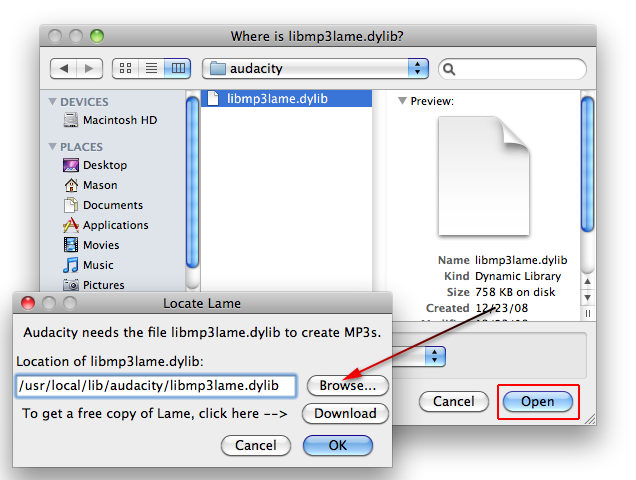
- The location should be “/usr/local/lib/audacity/libmp3lame.dylib”. Click Browse, then click Open to load it.
- Click OK. You may need to quit and re-open Audacity for the MP3 library to work.
- Finally, the moment you’ve been waiting for…
- Go to YouTube and type in the name of the song you want. Select the music video for the song.
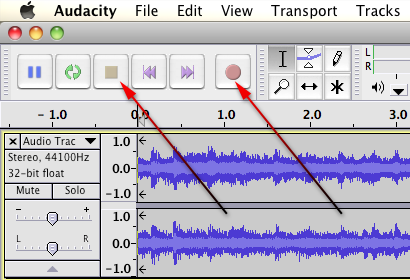
- Click the record button in Audacity (red circle button) and start recording the song from the YouTube music video.
- When the song is over, click the stop button (yellow square button) in Audacity.
- Go to File > Export.
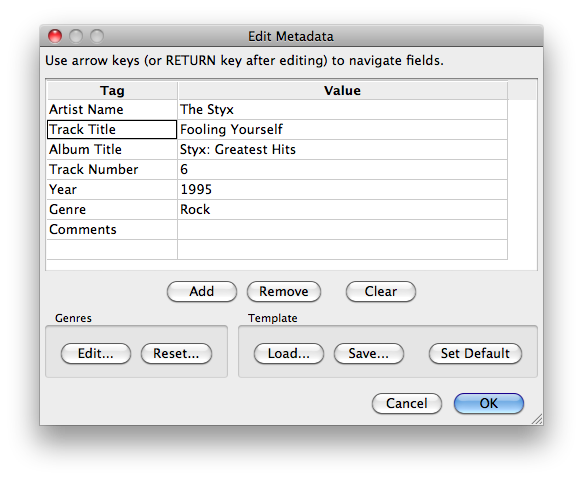
- Type in the song information (title, year, genre, artist). Click OK.
- In the Save As window, type in the song title as the filename. Change the Format to MP3 Files.
- Click Options if you want to adjust the MP3 settings. Then click Save.
- Import the song file into your iTunes library.
- Done.



Mason Sklut
Jan. 1, 2011Note: If you are experiencing an echo or reverb during recording/playback, please double-check your Audacity preferences and make sure that “Software Playthrough” is unchecked; it’s under the Recording section on the preferences.
Thanks,
Mason
MooWax
Jan. 22, 2011Working great. Thanks for this great tutorial.
MooWax
Jan. 22, 2011Don’t forget to turn back the sound in System Preferences after you’re done.
Phantos
Feb. 6, 2011Thank you for this help.
Took me ages, but got there in the end.
Jordan Ewert
Feb. 11, 2011I tried this, but could no get any sound to come out of my speakers after I changed my audio output in the pref panel. Is this normal?
Mason Sklut
Feb. 12, 2011Hey Jordan,
That’s not normal to happen. Try uninstalling and re-installing Soundflower.
Thanks,
Mason
Smartalicus
Apr. 20, 2011Splendid!!! A few years later, and it still works beautifully!
THANK YOU!
Mason Sklut
Apr. 20, 2011You’re welcome! Glad you found the tutorial helpful.
Thanks,
Mason
Kat
May. 4, 2011I can’t get the liblame to show up in my Audacity preferences. I downloaded the latest version … I think.
I didn’t agree to anything the folder appears in options when I browse from Audacity’s preferences but it’s gray and I am unable to click on it.
Any ideas?
Kat
May. 4, 2011Actually, let me add to that question…
I’ve also tried typing in the correct address, Audacity responds that it doesn’t exist and asks if I would like to create it.
Mason Sklut
May. 6, 2011Kat,
My best recommendation is to start from scratch.
Get the newest version of Audacity and Lame MP3 Encoder:
http://lame.buanzo.com.ar/
http://audacity.sourceforge.net/
Best,
Mason
Kate
Jun. 18, 2011Does this work for Windows?
Mason Sklut
Jun. 18, 2011Yes, follow the same directions for the Windows version of Audacity.
Marcus
Jul. 29, 2011I followed the instructions, but when launching Soundflower, in the menu bar it says Soundflower is not installed.
What should I do?I already tried re-downloading it.
Mason Sklut
Jul. 29, 2011Marcus,
Try using the uninstaller that comes with Soundflower. If that doesn’t work, please let me know.
Best,
Mason
Thom C
Jul. 31, 2011Thanks. I needed this when my copy of Audio Hijack stopped working. I found out about SoundFlower but could not get Audacity to work with it. After reading your instructions I get it.
Mason Sklut
Jul. 31, 2011Thanks Thom!
Beatriz B
Sep. 8, 2011Hey!
I followed the steps and it was working all right but then something happened. I can’t record anything, the sound just doesn’t show up. I checked everything and the only thing wrong (which I can’t fix) is the library thing on audacity. I already have erased LAME and have installed it again and it is still not working. Would you help me?
Mason Sklut
Sep. 9, 2011Beatriz, that’s really odd. Have you tried reinstalling Soundflower?
Murasaki
Sep. 12, 2011Running Mac OS X Snow Leopard for whatever reason could not for the life of me install LAME or find any .dylib files in the latest version.
Alternate solution if the LAME encoder via Audacity is not working:
Export as .wav file, drag into iTunes library, right click, “Create MP3 version”. You can trash the .wav file when finished.
Mason Sklut
Sep. 22, 2011Thank you for posting this!
Laurens
Oct. 1, 2011Hi, Thanks for the post. I did exactly what you described, and… it worked great!
But… then I wanted to do a second song from YouTube and Audacity is recording anymore.
Any idea why this happened?
Second issue: When I did the first song I couldn’t listen while recording, is it possible to listen while recording?
Mason Sklut
Oct. 2, 2011Laurens,
That’s odd. Try reloading LAME.
Let me know if that doesn’t work,
Mason
Beatriz B
Oct. 25, 2011I erased everything and reinstalled everything and it still wasn’t working. But I finally got it to work ;)
The problem was Soundflower indeed.
I went to Soundflower’s Audio Setup and in Soundflower’s two channels I just increased the volume besides number 1 and 2. Now Audacity is recording as it is supposed to. And now I can hear while Audacity is recording but really don’t know why.
Just thought you would like to know!
Thanks anyway!
Mason Sklut
Oct. 26, 2011Beatriz,
I’m glad to hear you found a solution! Thanks for letting me know!
Best,
Mason
Denise
Mar. 18, 2012Hey ,
On step 8, I don’t have the option of putting soundflower as the recording input. How can I get it to show on the drop down menu?
Mason Sklut
Apr. 20, 2012Denise,
I would try to reinstall SoundFlower if you are facing this issue.
Thanks,
Mason
Fabione
Jun. 4, 2012Well done Mr. Sklut!
But I have somtething to fix.
In the first instance I have followed your tips and everything works fine. Then I have found a cassette tape player to grab from “that old Audio System” my old recordings. It works fine also for this activity. When I go back to normal recording from web sources, it came out a mess. So now I have accomplished all the points listed from 1 through 23. But when I start recording I have a double audio reproduction – I mean that if I listen to what I record, everything is fine and there is only one audio source recorded. But right now I am recording and I am listening to two audio with a little delay from each other. Something like an horrible-to-listen reverb. I understand that I have a playback source that is not needed. Could you please help me?
Best regards,
Fabione
GBrad
Jun. 9, 2012I am having the same problem as Fabione, please help!!!!
GBrad
Jun. 9, 2012I am having the same problem as Fabione. When I first installed back in May everything worked like a charm. Now, however, I get a horrible whenever I am recording with Audacity (I have my headsets plugged in). When I stop recording everything is fine. When I turn soundflower off, change systems preferences back, and play the recording, still reverb. Any help?
Mason Sklut
Jul. 1, 2012Fabione,
I’m sorry to hear this is occurring to your recording sessions. My best recommendation is that you double-check your Audacity preferences and make sure that “Software Playthrough” is unchecked; it’s under the Recording section on the preferences.
Please let me know if that works.
Best,
Mason
Gemma
Feb. 19, 2013Hi there,
I am using Garageband (instead of Audactiy) & Soundflower, but I still get that slight echo/reverb effect happening.. I tried to follow similar steps to the instructions you had above for fixing this issue in Audacity but couldn’t find the menu option in GB, how do I fix this in Garageband please?
redhead
Mar. 24, 2013Audacity crashes after 12-15 minutes with an error about bit rate. Restarting Audacity does not work.
Cubytus
Sep. 1, 2013These instructions don’t work, at all. I can’t monitor the sound, nor I can record anything. Completely blank track.